
Setting up EU Kit on Shopify
Setup takes about five minutes. You add each block to your theme with one click, move it into place, and fill in the safety details only you know. This guide follows the order the app shows you. The screenshots are from our test shop, which runs Shopify's free Horizon theme.
The same setup as a two-minute video:
Playing loads the video from YouTube (Google), which sends data to Google. Privacy
In short:
- Install the app and open it. The dashboard lists the setup steps.
- Click Add to theme next to each block, then Save in the theme editor (section 1).
- Move the product blocks to where they belong: the prior price under the price, the rest above the buy buttons (section 2).
- Add the withdrawal button to the footer the same way (section 3).
- Check that the dashboard shows every block as Active (section 4).
- Add your manufacturers and EU Responsible Persons, assign them to products, and add your markets (section 5).
This guide explains the app. It is not legal advice. The app helps you display what the rules ask for; it does not make a shop compliant on its own.
1. Add each block with one click
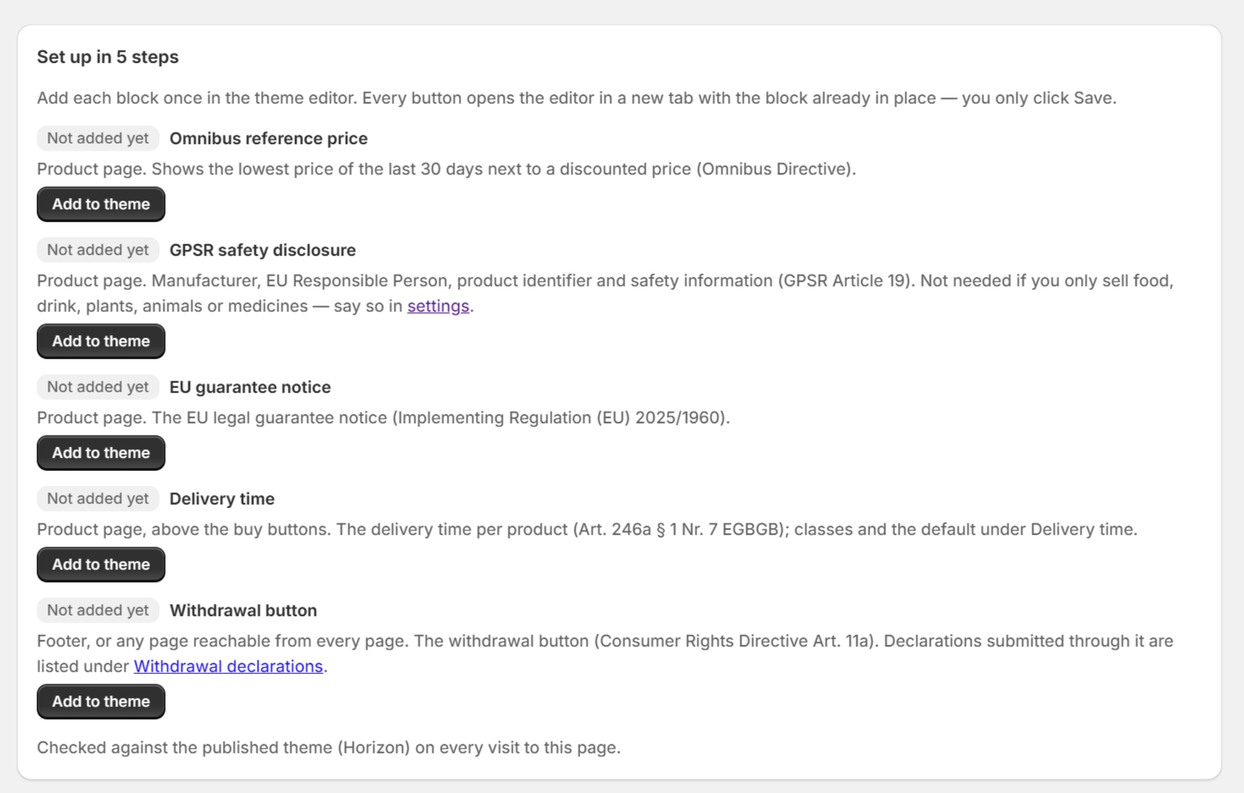
After you install, the dashboard's first card is Set up in N steps. There is one row for each block your store needs: the Omnibus prior price, GPSR product safety, the EU guarantee notice and the withdrawal button on the free plan, plus the delivery time on Pro.
- Click Add to theme next to a block. The theme editor opens in a new tab with the block already added to your published theme.
- Click Save at the top right of the editor.
- Go back to the app's tab and do the next one.
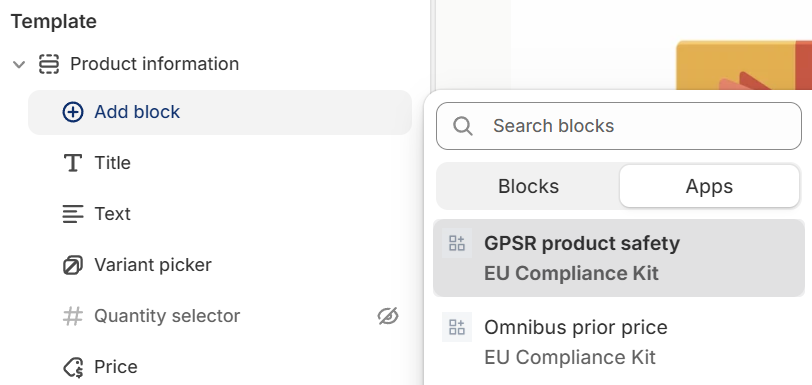
The button always adds the block to your published theme. If you are working on a draft theme, add the blocks there by hand: in the editor, click Add block inside the Product information section and open the Apps tab.
2. Move the product blocks into place
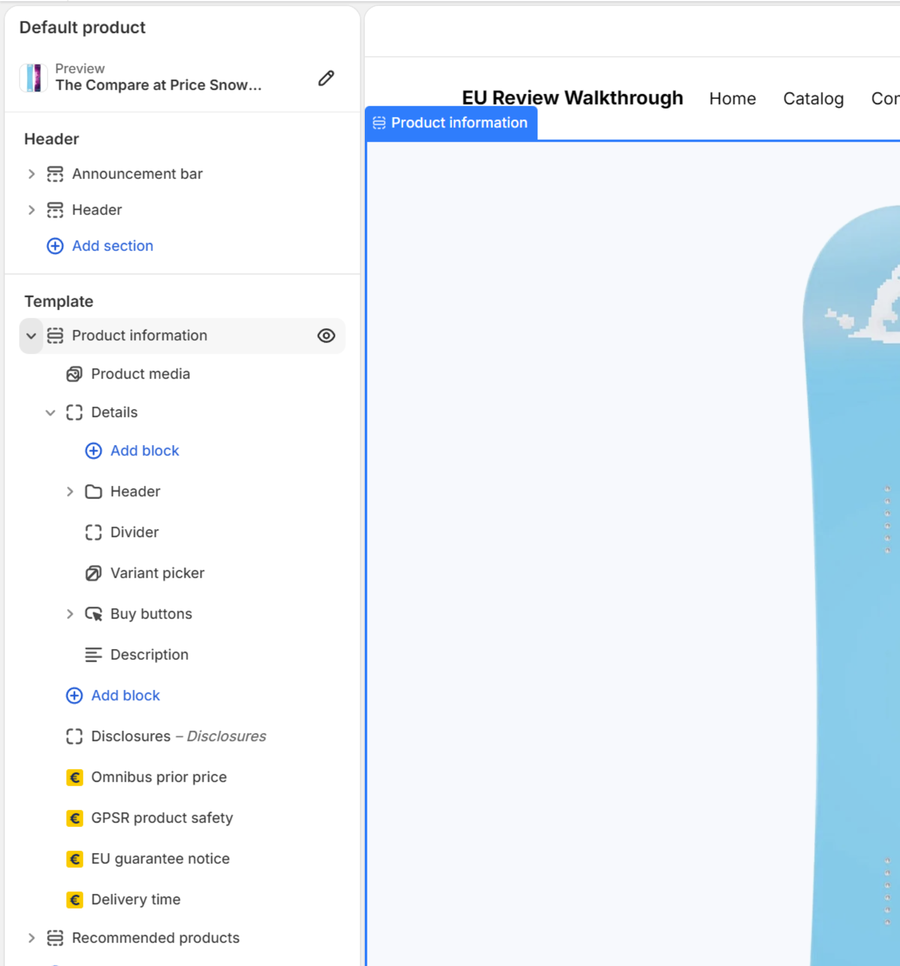
New blocks land at the bottom of the Product information section, below the description. That works, but shoppers look for this information next to the price and the buy buttons. In the left panel of the editor, drag each block by its handle (the dotted grip that appears when you point at it):
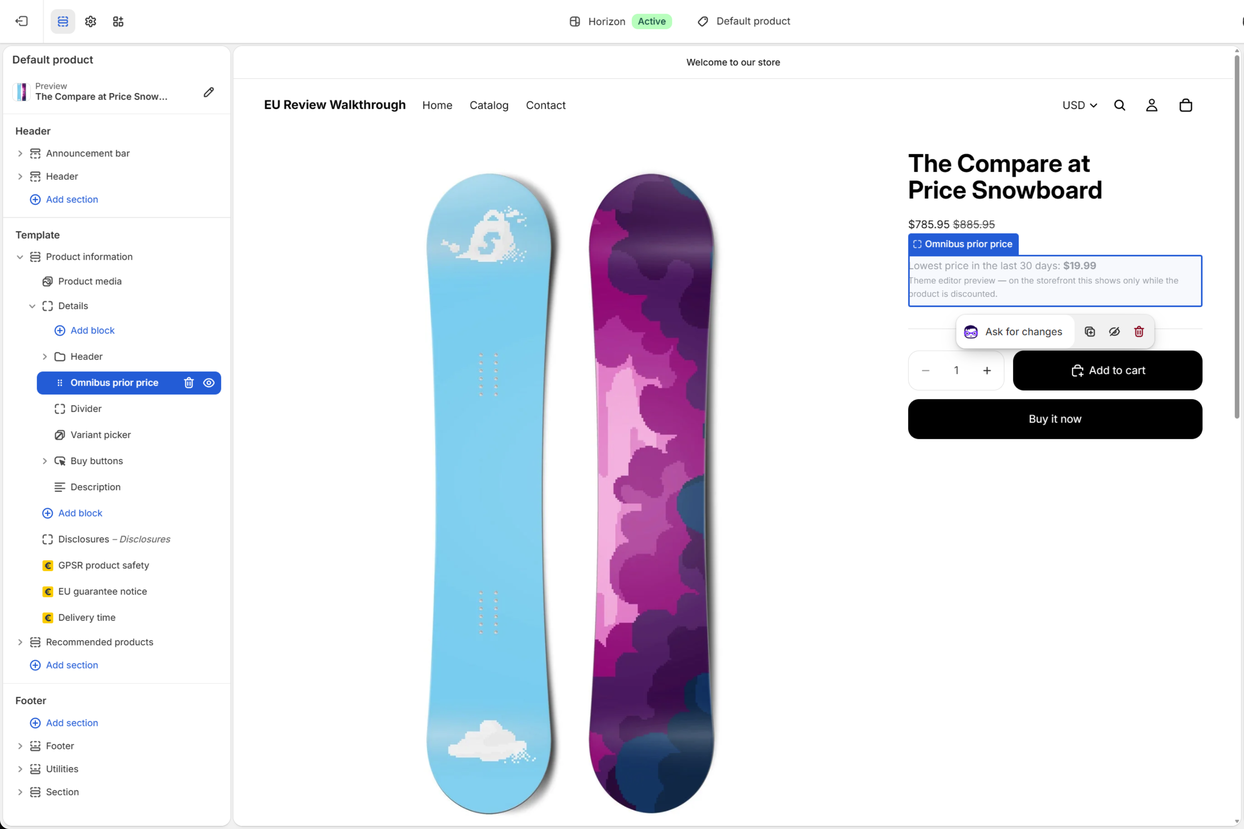
| Block | Where it goes | Why |
|---|---|---|
| Omnibus prior price | Right under the block that holds the title and price (in Horizon: Header inside Details) | The lowest price of the last 30 days must be seen with the discount |
| Delivery time (Pro) | Just above the buy buttons | Shoppers see it before they buy |
| EU guarantee notice | Just above the buy buttons | The link to the legal guarantee rights, before the order |
| GPSR product safety | Anywhere on the product page; the bottom is fine | It is longer, and shoppers open it when they need it |
The editor shows a sample of each block (for example "Lowest price in the last 30 days: $19.99"), so you can see where it will appear even if the product is not discounted. On your live store the prior price shows only on discounted products.
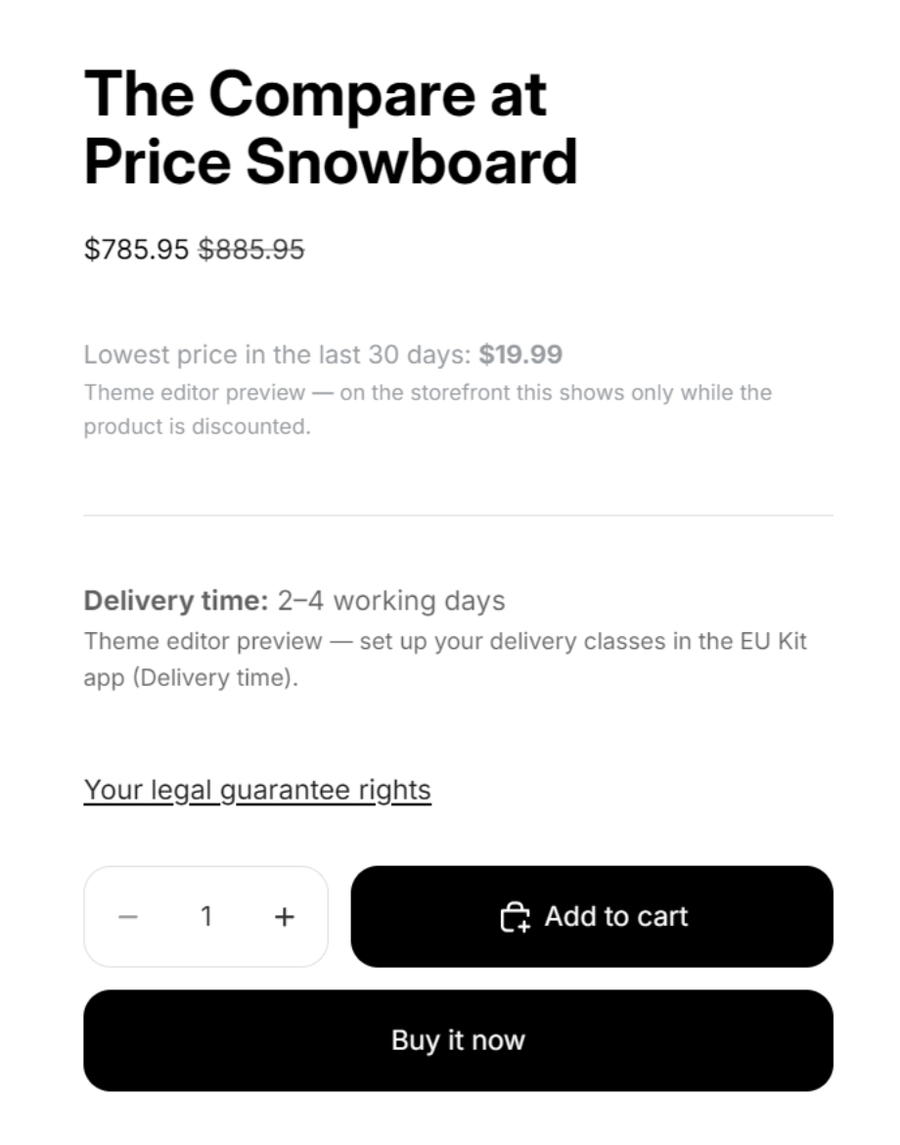
Click Save when the order looks right.
Other themes: the section names differ, but the idea is the same. Look for the section that holds the product title, price and buy buttons, and drag the blocks inside it.
3. Put the withdrawal button in the footer
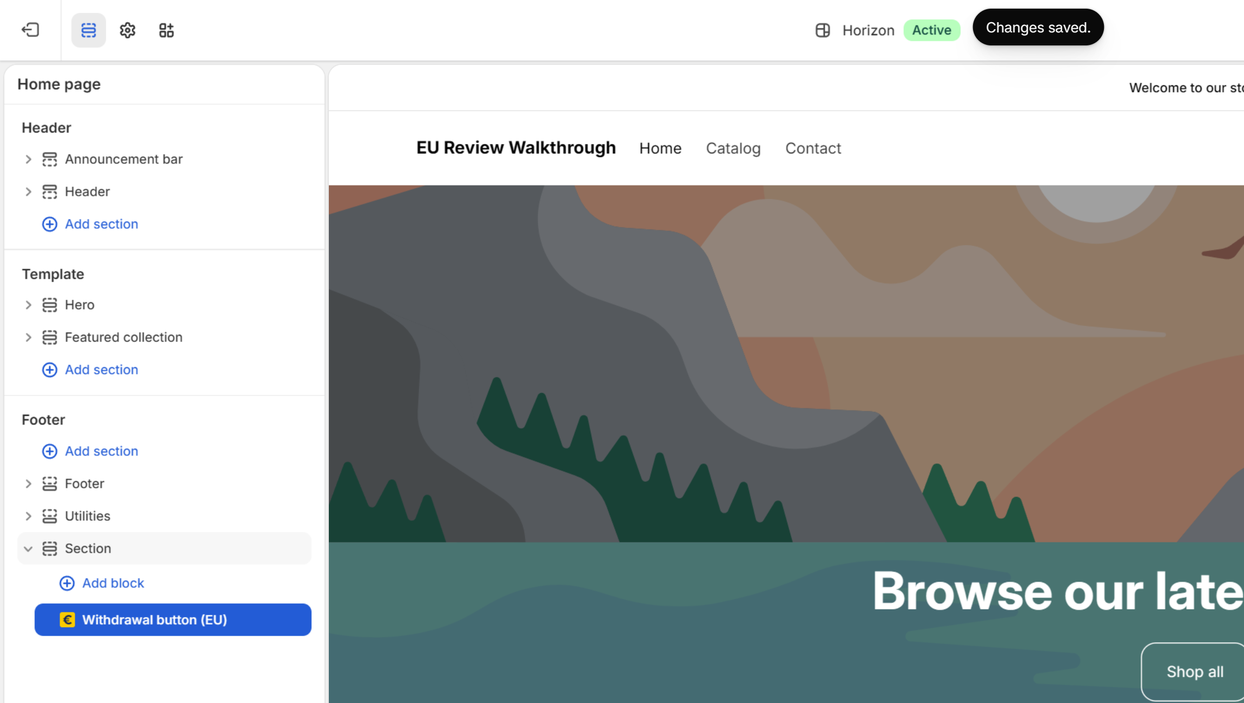
Customers must be able to withdraw from a contract from anywhere in your shop, so the button belongs in the footer, where it appears on every page. Its Add to theme button opens the editor on your home page with the button already in a footer section. Click Save.
Declarations sent through the button are kept in your store and listed in the app under Withdrawal declarations, with the date and time. The customer gets a dated confirmation straight away.
4. Check the dashboard
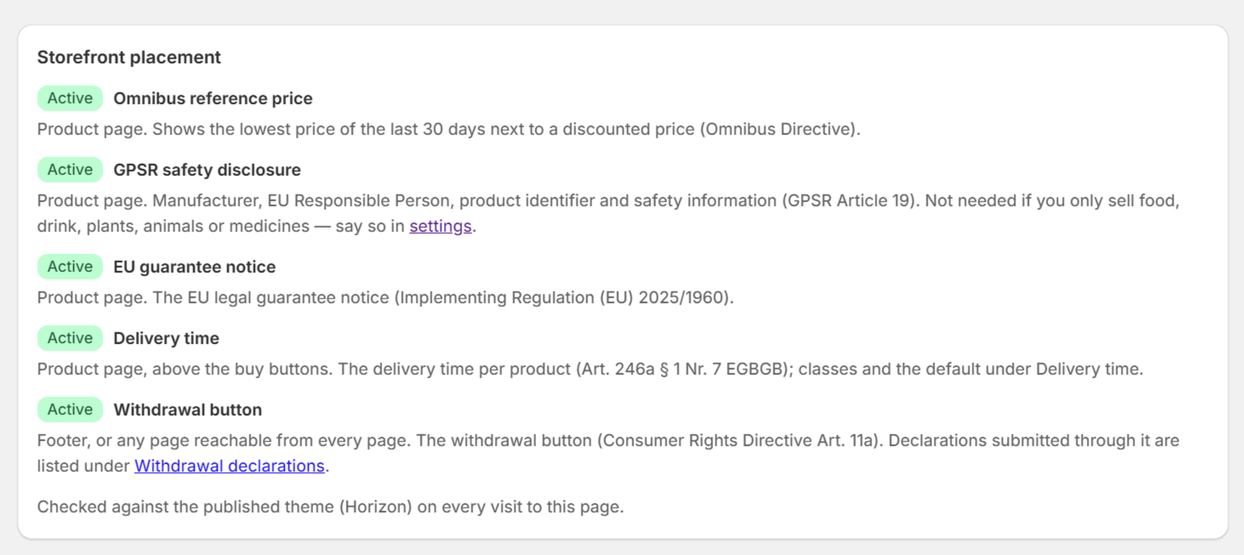
Back in the app, the card now reads Storefront placement, and every block should say Active. The app checks your published theme each time you open the dashboard. If a block goes missing later, for example after you switch or update your theme, a red warning appears at the top with a button that puts it back.
5. Fill in what only you know
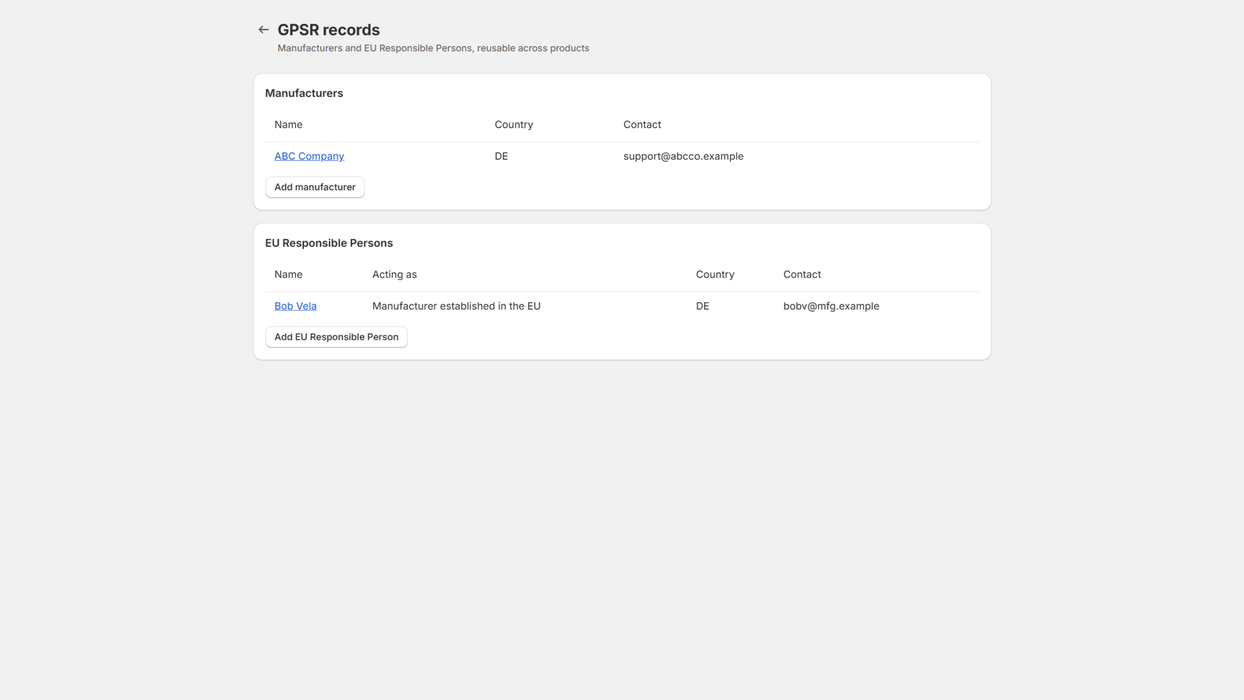
GPSR records. Under GPSR records, add each manufacturer once: name, postal address and an email or web contact. If a manufacturer is based outside the EU, also add the EU Responsible Person who acts for them.
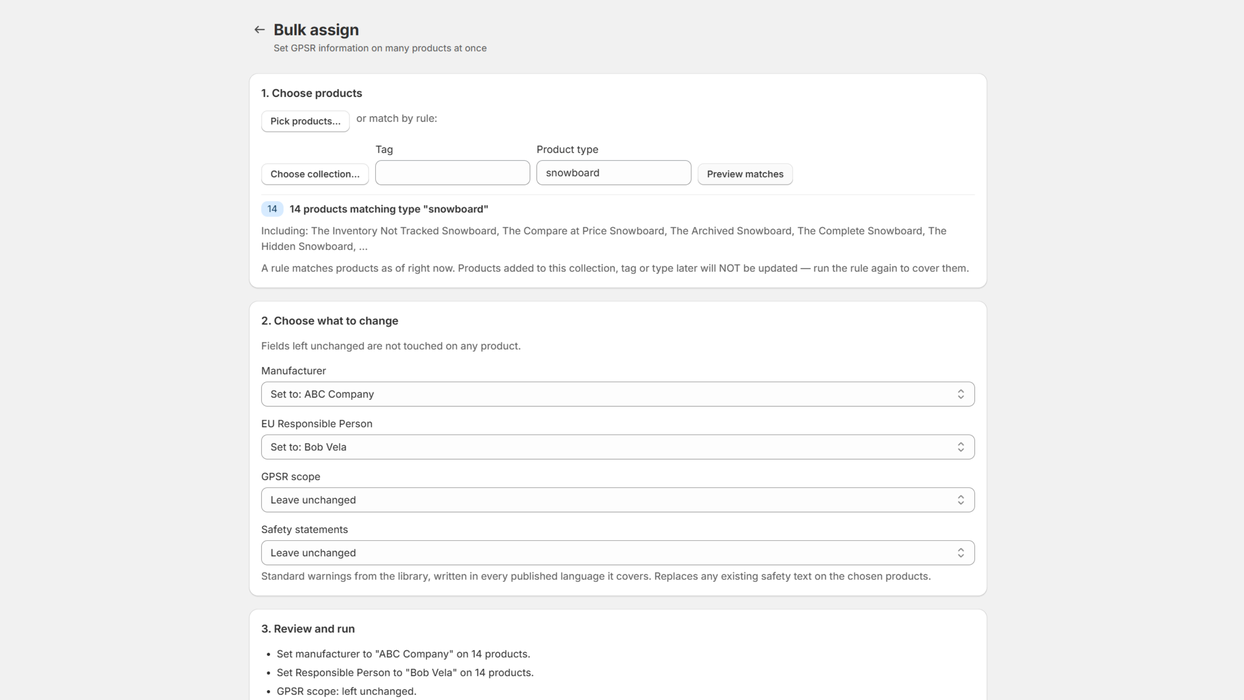
Bulk assign. Give those records to many products at once. Pick products by hand, by collection, by tag or by product type, choose the manufacturer and Responsible Person, add standard safety statements if you need them, and check the preview before you apply.
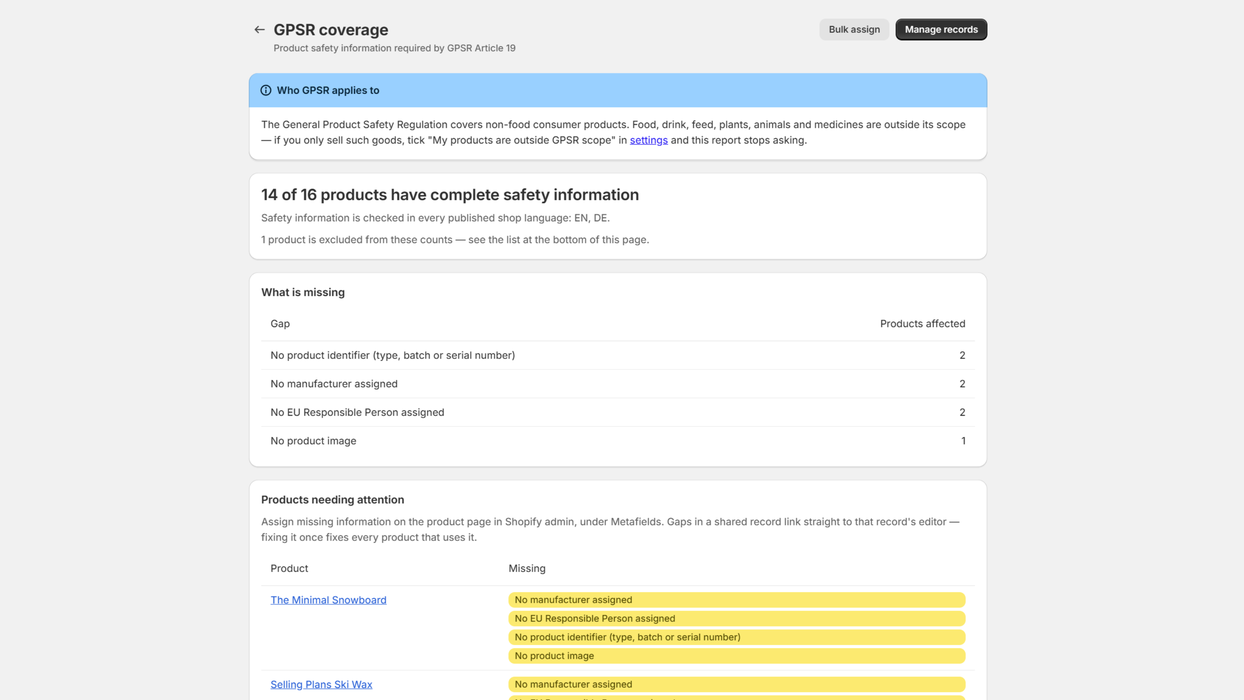
Coverage report. Under GPSR coverage you see how many products are complete and what the others are missing, product by product.
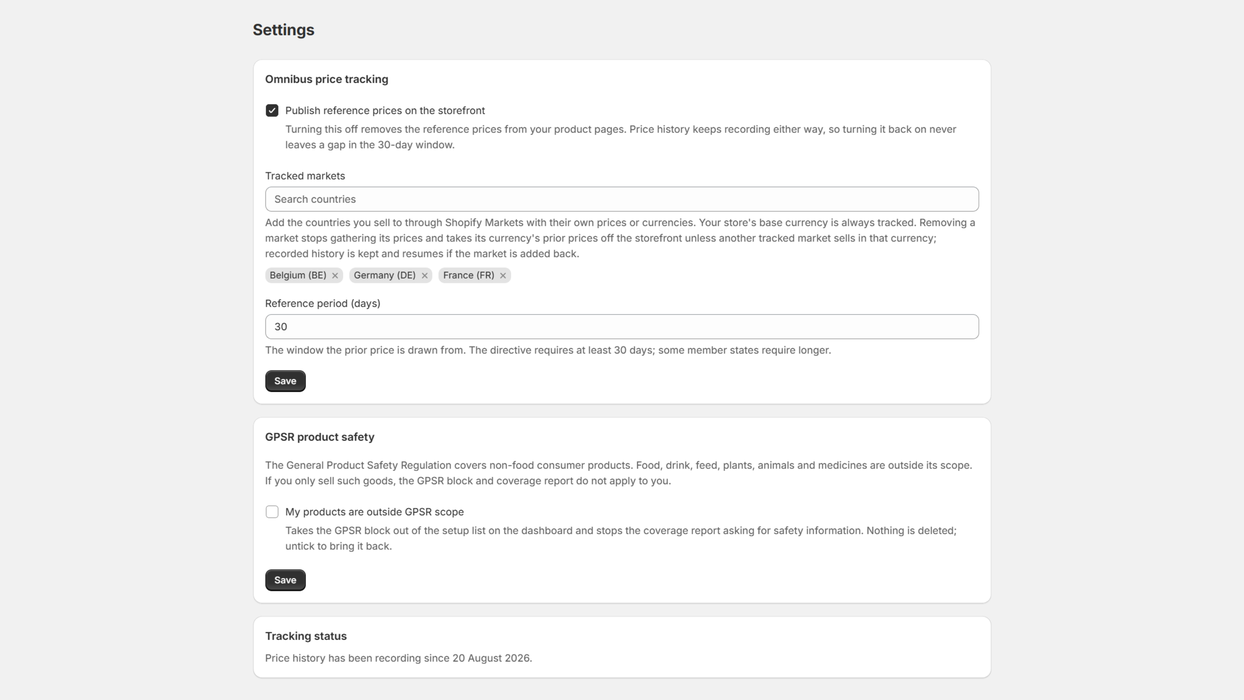
If you only sell food, drink, plants, animals or medicines, GPSR does not apply to you: tick My products are outside GPSR scope in Settings, and the GPSR block and setup step go away.
Markets. In Settings, add the countries you sell to with their own currency. Your base currency is always tracked. The app records your prices every day in each currency, and the lowest price of the last 30 days appears on discounted products by itself. For the first 30 days after you install, the line says "Lowest price since tracking began", because the app only knows prices from the day you installed.
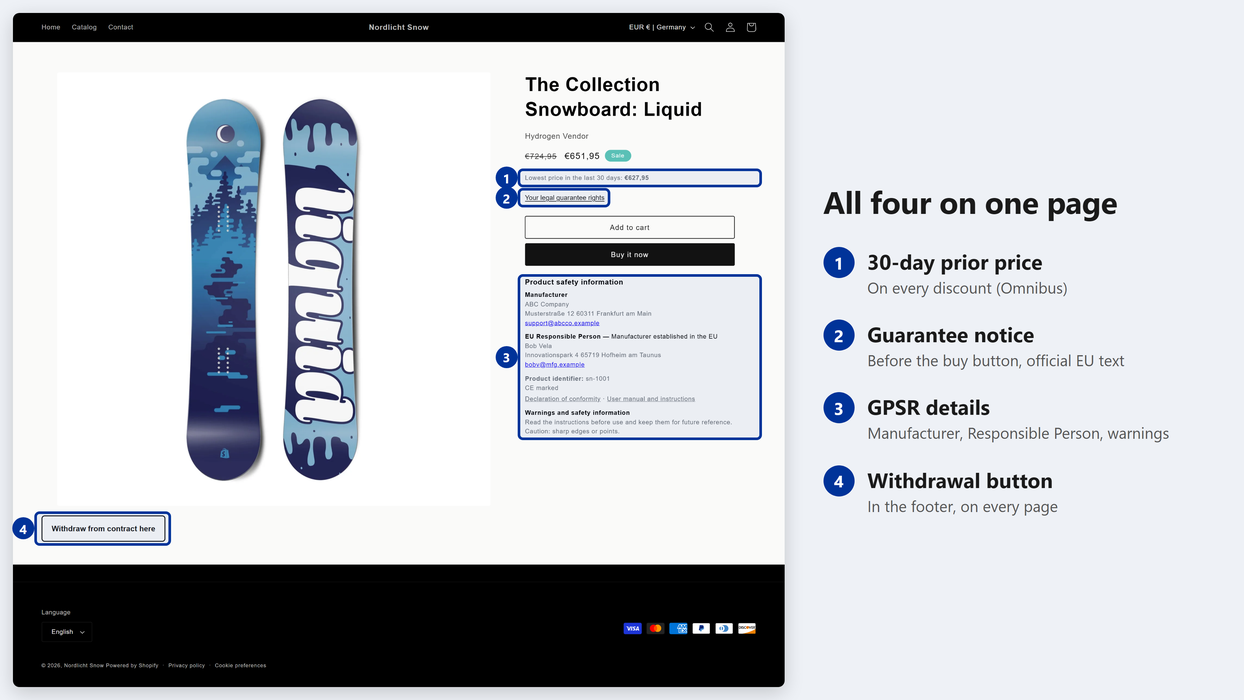
That is the setup. A finished product page looks like this:
6. More blocks
The setup card covers the blocks every store needs. The others you add by hand when they apply to your products: in the editor, click Add block inside Product information and open the Apps tab.
| Block | For | Plan |
|---|---|---|
| Price line: VAT/shipping | "Incl. VAT, plus shipping" under the price | Free |
| Durability label (GARAN) | Products with a free producer guarantee of more than two years | Free |
| Product notices | Withdrawal exclusions, hazard (CLP) notices, cosmetics ingredients, textile fibres, supplements | Pro |
| Disposal notices | Products with batteries or electrical parts | Pro |
| Electronics | Energy label, tyre label, charger and e-waste information | Pro |
| Software updates | How long a connected device gets updates | Pro |
| Food information | Ingredients with allergens, nutrition, food business operator | Pro |
7. Plans
| Free | Pro | |
|---|---|---|
| Withdrawal button with dated receipts | ✓ | ✓ |
| EU guarantee notice and GARAN label | ✓ | ✓ |
| GPSR block, records, bulk assign and coverage report | ✓ | ✓ |
| VAT and shipping line | ✓ | ✓ |
| Omnibus prior price | Up to 100 products | Every product, all markets |
| Delivery time, deposit, unit prices, food, cosmetics, textiles, CLP, energy and tyre labels, e-waste | ✓ | |
| Green-claims check, price history export and import, compliance record (PDF) | ✓ | |
| Price | $0 | $12.99 every 30 days or $129.90 a year, after a 30-day free trial |
Upgrade from the dashboard (Upgrade to Pro). Shopify bills it, and uninstalling cancels it. Development stores get Pro free.
8. Something does not show
- Did you save? The theme editor only changes your store after Save.
- Is it on the published theme? The dashboard checks the published theme. If you edited a draft, publish it or add the blocks to the live theme.
- Is there something to show? The prior price appears only on discounted products, GPSR details only on products with a manufacturer assigned, GARAN only with a qualifying guarantee.
- Is it on the right product template? If some products use another template (for example
product.alternate), the dashboard names it. Open that template in the editor and add the block there too. - Hidden in the theme? A block switched off in the editor (the eye icon) shows as Hidden in theme on the dashboard. Switch it back on and save.
- Only for EU visitors? Each block has an "Only show to visitors in the EU/EEA" setting. It follows the storefront's country selector, so a shopper set to the United States does not see it.
Still stuck? Write to support+eucompliance@justarobot.online
with your store's .myshopify.com address and what you expected to see.
Frequently asked questions
Do I need to know any code? No. Every block is added in the theme editor, and the setup buttons add them for you.
Will it slow my store down? No. The blocks read metafields that Shopify sends with your page. Nothing on your storefront calls our servers.
What happens if I change themes? The blocks belong to the theme, so a new theme starts without them. The dashboard shows a warning with a button to add each one back.
Can I remove a block? Yes. In the theme editor, select it and click Remove block, then save.