
EU shop rules on Shopify without an app
If your Shopify store delivers to customers in the EU, four display rules apply to those orders. Three of them you can meet with what Shopify already gives you. The fourth, the withdrawal button, works by hand only if you answer each request yourself.
We built the withdrawal page on our own store and tested what the form sends. The theme editor steps for the guarantee notice and the manufacturer details follow Shopify's own help pages; we did not click through those ourselves.
This is what the result looks like on our test store, with our app's blocks in the same four places:
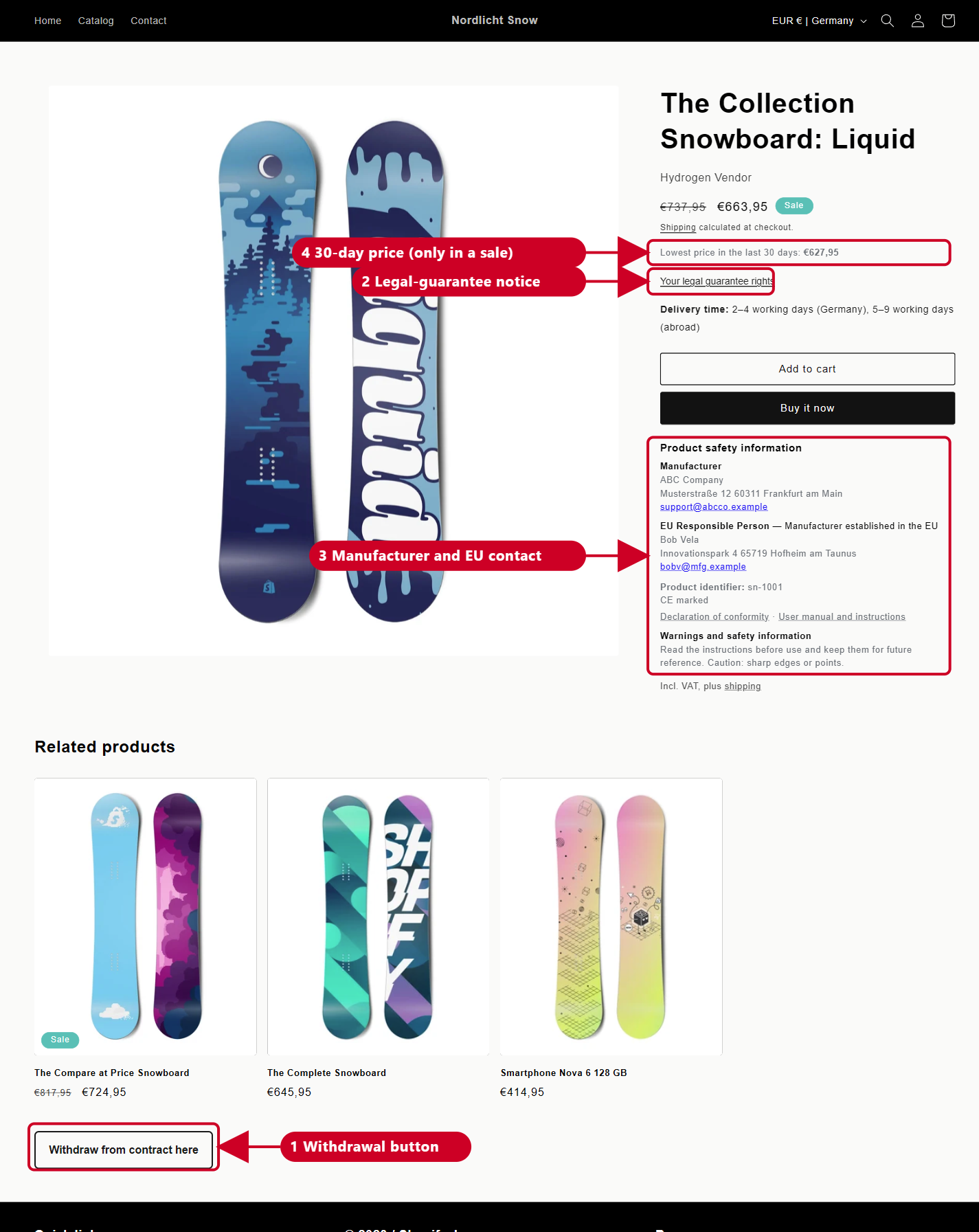
This guide is general information, not legal advice.
1. Withdrawal button
What it has to do (since 19 June 2026): a button labelled "Withdraw from contract here" that is easy to find on every page, a short form behind it, a second button "Confirm withdrawal", and then an email to the buyer confirming what they sent and when.
These steps as a two-minute video:
Playing loads the video from YouTube (Google), which sends data to Google. Privacy
- In your admin go to Online Store > Pages > Add page. Title it "Withdraw from contract".
- On the right, set Template to "contact". That gives the page your theme's contact form: name, email, phone number and a comment box. In the page text, ask for the order number in the comment box.
- Also on the right, set Visibility to "Visible". A new page can start as Hidden, and a hidden page shows "Page not found".
- Save, then go to Content > Menus > Footer menu > Add menu item, name it "Withdraw from contract here" and point it to that page.
- Open your store and look at the footer. If the link is not there, your theme's footer is showing a different menu. Go to Online Store > Themes > Edit theme, scroll the preview to the footer and click its list of links. On the right, under Menu, click the menu's name, then Replace, choose Footer menu and Save. On our test store the footer was set to Main menu, and the link only appeared after this change.
Say so in your withdrawal policy. The rule also asks you to tell buyers, before they order, that the button exists and where it is. Add a sentence to your withdrawal or returns policy, for example: "You can also withdraw online with the 'Withdraw from contract here' link in the footer of every page."
The limit. Shopify's built-in contact form only emails you, not the buyer. We tested it: the buyer sees "Thanks for contacting us" on the page and gets no email. You get a "New customer message" email with the date and time in the subject and everything they typed.
So by hand you have to answer each request yourself, straight away. Forwarding that email to the buyer does it, because it repeats what they sent and when. The form's button also says "Send", not "Confirm withdrawal", and that wording belongs to the theme.
If you want the confirmation to go out by itself, this is the one rule where you need a form app or ours.
Anything made to order or personalised has no right of withdrawal. If you sell those, say so on those product pages.
2. Legal-guarantee notice
What it has to do (since 27 September 2026): a line worded like "Your legal guarantee rights" that opens the European Commission's official notice. The notice is a fixed design, so you use the file as it is: the English notice.
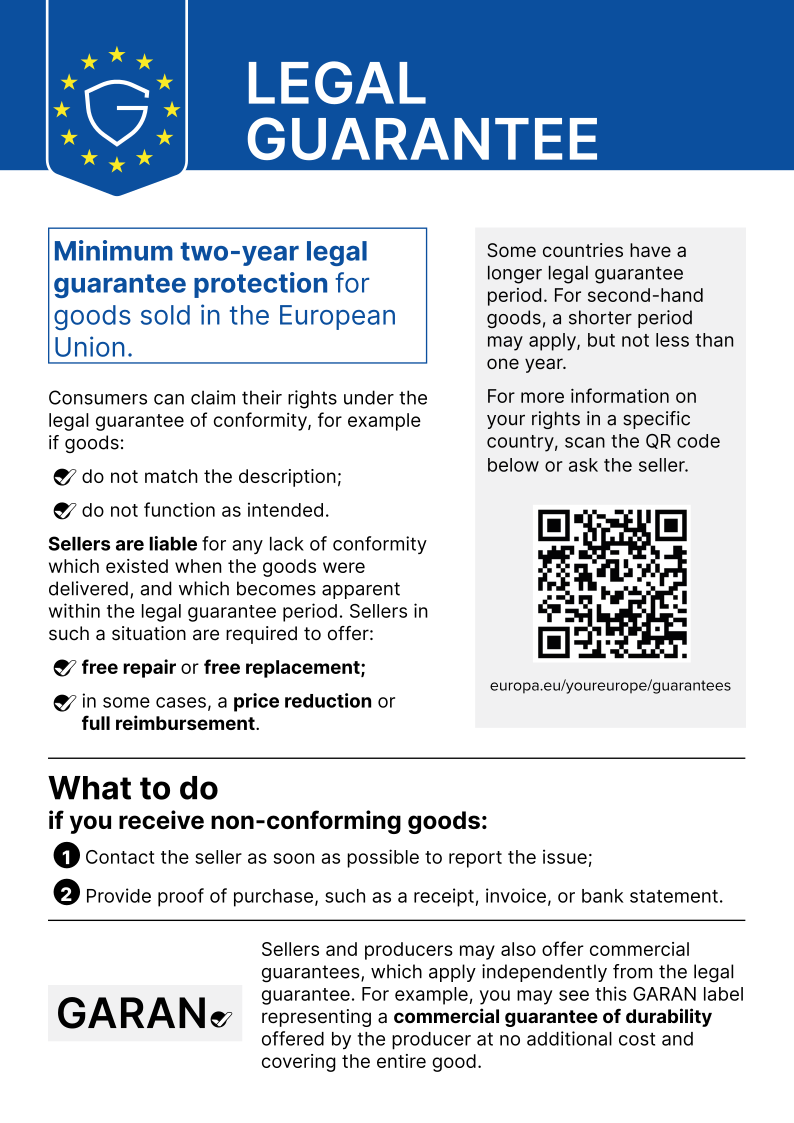
- Download that file, then upload it under Content > Files and copy its link.
- Go to Online Store > Themes > Edit theme and open the Products > Default product template.
- In the Product information section add a Text block just above the Buy buttons, type "Your legal guarantee rights" and link it to the file.
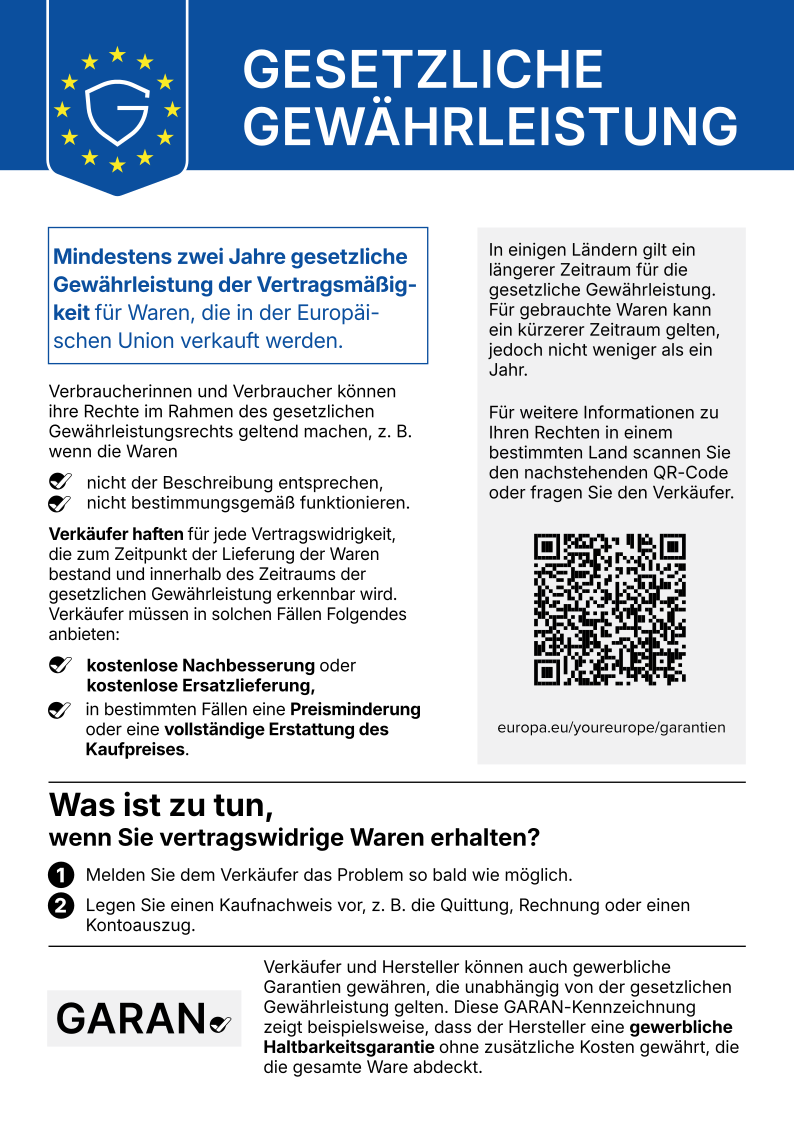
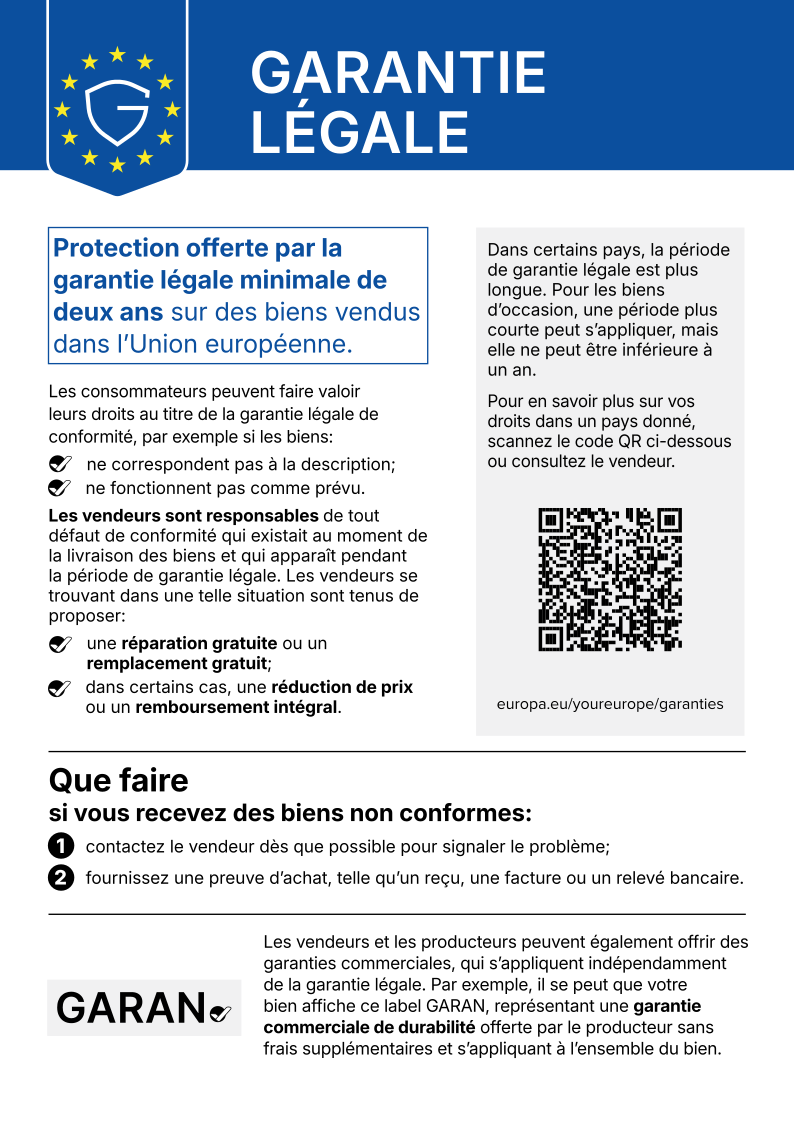
The notice exists in all 24 official EU languages. Use the one that matches the language of your
shop: change en in the file name to your language code, for example
notice-de.svg for German or notice-fr.svg
for French.
3. Manufacturer and EU contact
What it has to show (since 13 December 2024), on each product page: who made the product (name, postal address, email), a responsible person or company inside the EU if the maker is outside it, what identifies the product (its type and a model, batch or serial number, next to the picture), and any warnings, in the language of the country you deliver to.
The manufacturer is whoever made the product. If you make it yourself, that is you. If you resell it, it is the brand or factory behind it, not your shop.
The quick way: paste this at the end of each product description and fill it in.
Manufacturer: [name of the company that made it], [address], [email]. EU responsible person: [name], [EU address], [email]. Product: [type, and model, batch or serial number].
The tidy way, if you have many products:
- Settings > Metafields and metaobjects > Products > Add definition, name it "Product safety", type multi-line text.
- Fill that field in on each product.
- In the theme editor, on the product template, add a Text or Collapsible row block, click the "connect dynamic source" icon on its text and pick "Product safety". Each product then shows its own text, and products where the field is empty show nothing.
The EU contact is the part most shops outside the EU do not have yet. Small sellers usually pay an EU representative service for it. No app can supply that for you, ours included.
4. 30-day price, only when you run a sale
When you show a reduced price to EU buyers, you also have to show the lowest price you charged in the 30 days before the sale started.
- Before you change any prices, export your products to CSV and keep the file. Shopify keeps no price history, and the compare-at price is whatever you type in.
- For the length of the sale, add a line to the product description: "Lowest price in the last 30 days: [price]".
- Take the line out again when the sale ends.
If you would rather not do it by hand
Our Shopify app adds all four as theme blocks and sends the withdrawal confirmation by itself. The setup guide shows how it goes in.
The setup in two minutes:
Playing loads the video from YouTube (Google), which sends data to Google. Privacy
Frequently asked questions
Can I do the withdrawal button on Shopify without any app? You can build the page and the footer link without one. What Shopify's built-in form does not do is email the buyer a confirmation, so you would have to send that yourself for every request.
Does the buyer get anything after pressing Send? Only the on-page message "Thanks for contacting us". In our test no email went to the buyer; the store received a "New customer message" email with the details and the time.
Do these rules apply to a shop outside the EU? They apply to orders from consumers in the EU. If your store delivers there, they apply to those orders wherever you are based.