Setting up EU Compliance Kit on Wix
EU Compliance Kit puts nine EU rules on a Wix Stores site. Most of it appears on its own; a few things need one visit to the Wix Editor and a few need data only you have (who made a product, how long delivery takes, what is in a wine). This guide goes through all of it in the order you will meet it. The screenshots are from our test shop.
In short:
- Install the app from the Wix App Market.
- Check your product page: the product blocks should already be there. If one is missing, add it from the Plugins panel in the Editor (section 2) and Publish.
- Place the withdrawal button once, usually in the footer (section 3).
- Open each page of the app in your dashboard and fill in what applies (section 4).
- Publish the site after any change in the Editor. Dashboard changes need no publish.
This guide explains the app. It is not legal advice, and the app helps you display what the rules ask for; it does not make a shop compliant on its own.
1. What the app adds to a product page
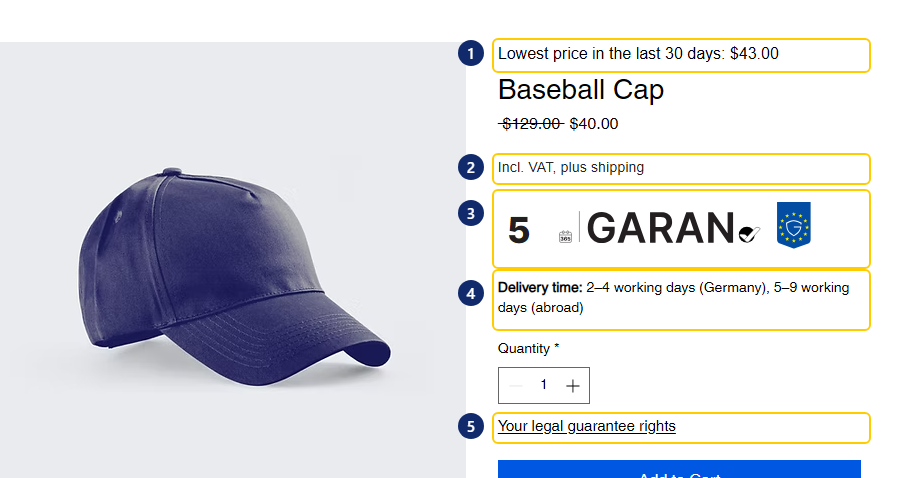
These are plugins: blocks that sit in fixed places inside the Wix Stores product page. On a new installation Wix adds all of them to your product page template at once, so they appear on every product. Most stay empty until there is something to show.
| # | Plugin name in the Editor | What it shows | Shows when |
|---|---|---|---|
| 1 | Omnibus prior price | "Lowest price in the last 30 days" above the price | A product is discounted |
| 2 | Price line: VAT & shipping | "Incl. VAT, plus shipping" under the price, or the § 19 UStG small-business sentence | Always |
| 3 | EU durability guarantee label | The GARAN label | You recorded a qualifying producer guarantee (Pro) |
| 4 | Delivery time | "Delivery time: 2–4 working days" | You set a delivery class |
| 5 | EU legal guarantee notice | A link that opens the Commission's guarantee notice | Always |
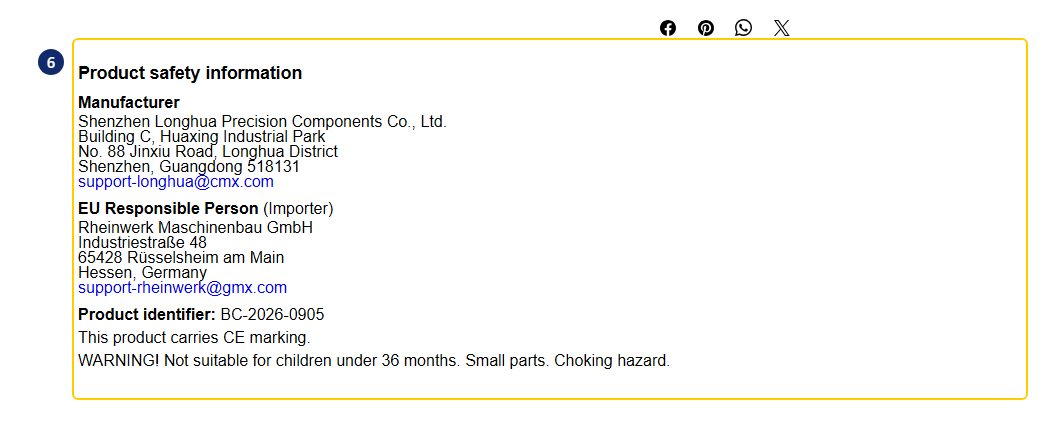
| 6 | GPSR product safety details | Manufacturer, EU Responsible Person, identifier, warnings (bottom of the page) | You assigned records to the product (Pro) |
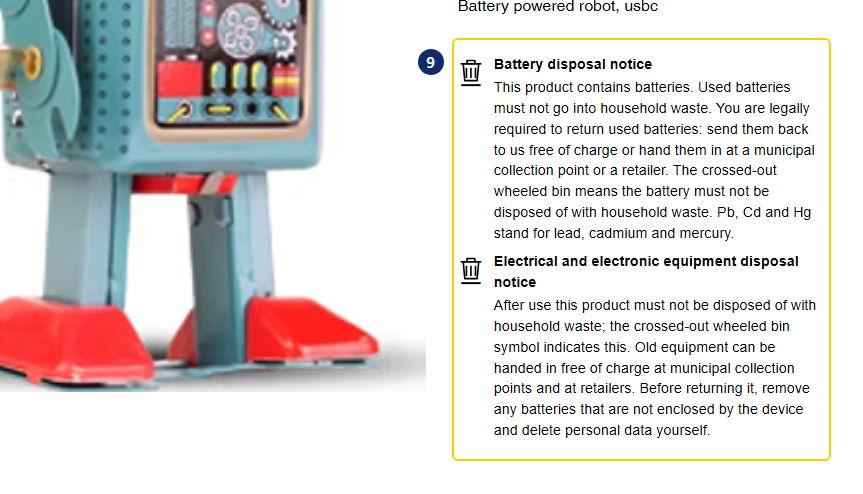
| 9 | Battery & e-waste notices | Disposal notice with the crossed-out bin (below the buy buttons) | You flagged the product |
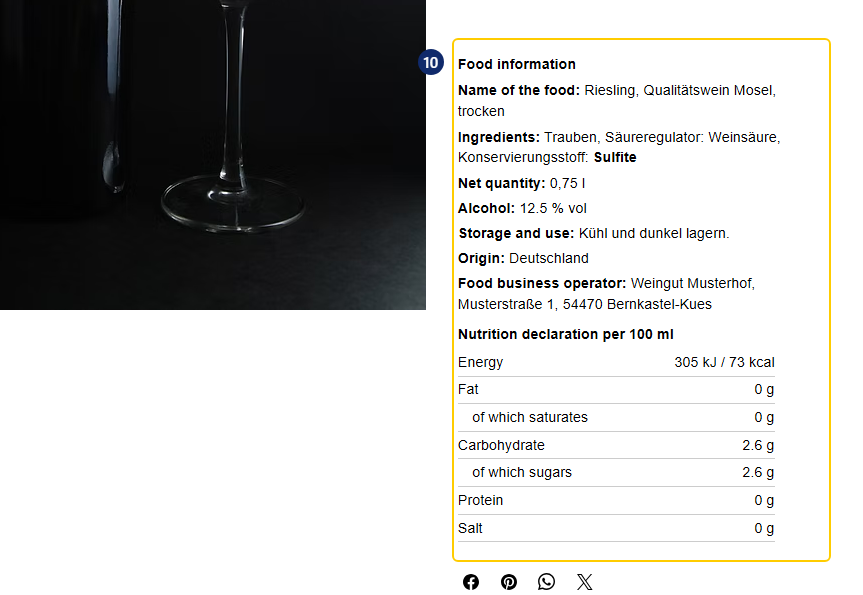
| 10 | Food information | Name, ingredients with allergens, net quantity, alcohol, operator, nutrition | You filled in the food record (Food and Drink plan) |
2. Add, check or remove a plugin in the Wix Editor
Plugins are added automatically only when the app is installed. If your site had the app before a feature existed (delivery time and food information arrived in September 2026), or if a plugin was removed, add it by hand. It takes a minute:
- In your site's dashboard click Edit Site.
- At the top, open the Page menu and choose Product Page (under Store Pages). If there are two, pick the one your shop uses; the steps are the same on both.
- Click the product area on the page once to select the Wix Stores product widget.
- In the small toolbar that appears, click Plugins.
- The panel lists the plugins available for each spot. Next to an EU Compliance Kit plugin click Add (or Replace, if another plugin already sits in that spot; see the note below).
- Click Publish at the top right. Save alone does not change your live site.
To remove a plugin, open the same panel and click Remove next to it, then Publish.
To change a plugin's settings (for example the language, the § 19 UStG wording of the price line, or whether food information starts collapsed), select the plugin on the page in the Editor and click Settings.
About "Replace": each spot on the product page holds one plugin. If the panel offers Replace instead of Add, another plugin (ours or another app's) already uses that spot. Replacing removes the other one from the page.
3. Place the withdrawal button (once)

The withdrawal button (8) and the extra guarantee notice link (7) are widgets, not plugins: you decide where they go, and Wix does not add them for you. The usual place is the footer, which puts them on every page.
- In the Editor, click Add (the + on the left).
- Choose App Widgets → EU Compliance Kit → Withdrawal button, and drag it into the footer. Do the same for EU legal guarantee notice if you want the link in the footer too (the product page already has one).
- Publish.
If the button cannot go into your footer, open Withdrawals in the app's dashboard and switch on Withdrawal link on every page instead.
To remove a widget, select it in the Editor, press Delete, and Publish.
4. What to fill in, rule by rule
All of this happens in your site's dashboard under Apps, where the app adds these pages. Changes are saved when you save the page and reach your live site without publishing.
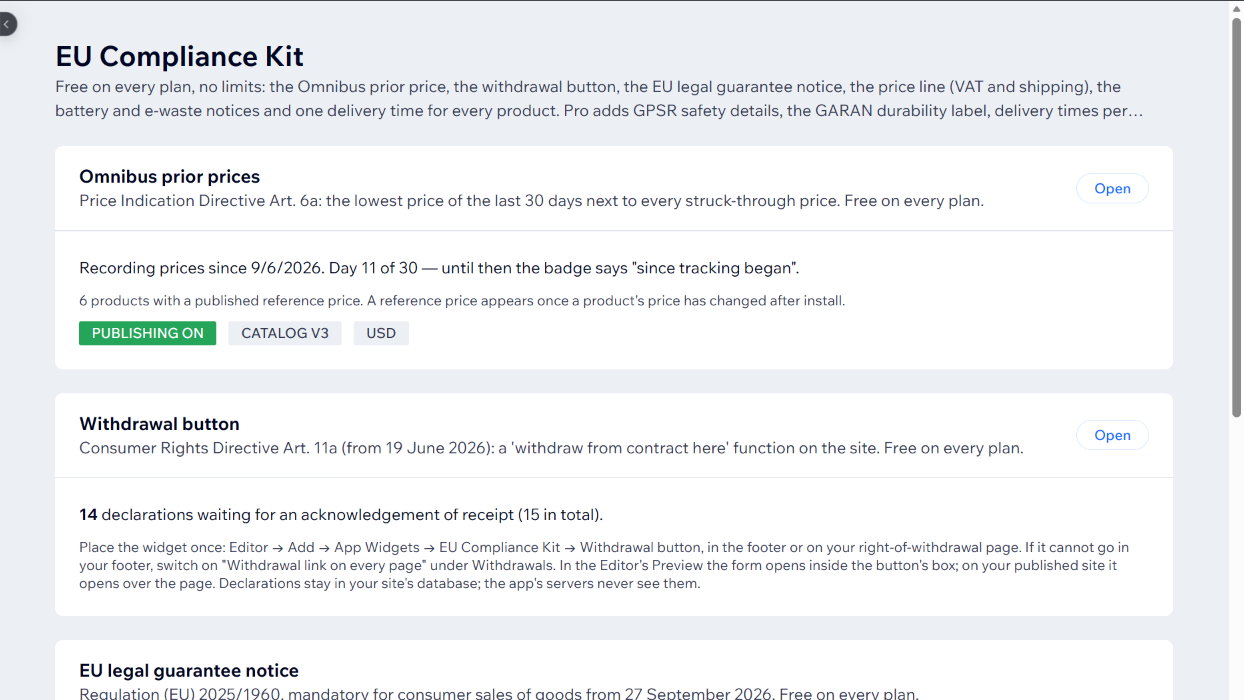
EU Compliance Kit (Home). An overview of every rule with its status, plan and a link to its page. Start here.
Omnibus prices. Nothing to set up. The app records every price daily from installation. When you discount a product, the badge shows the lowest price of the previous 30 days (before 30 days of history, it says since when prices are tracked). Pro adds the price history chart, CSV export, longer reference periods and exemptions for perishable goods.
Withdrawals. Declarations your customers send through the button land here, with date and time. Switch on automatic acknowledgement e-mails if you want them sent for you.
Delivery time.
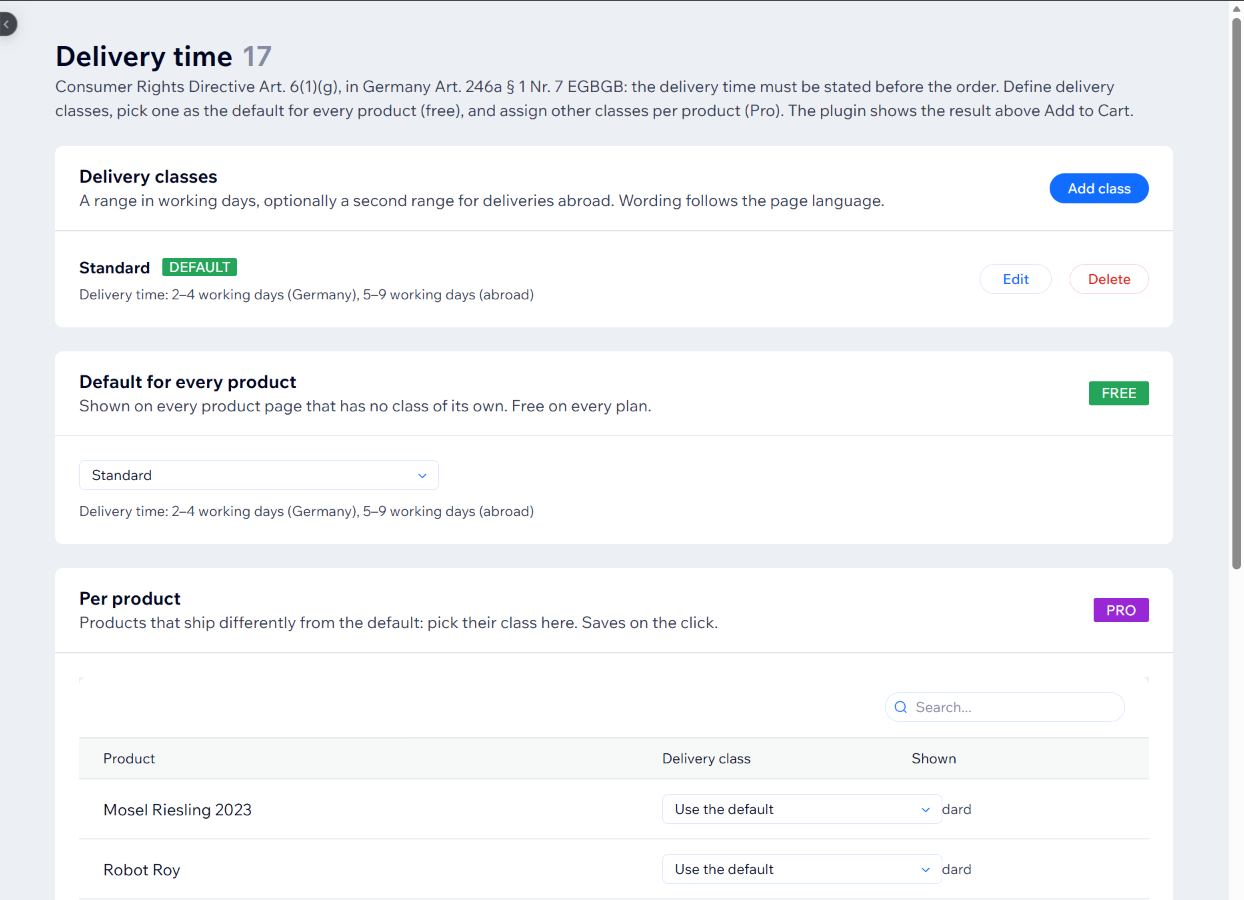
- Add class, for example "Standard", 2 to 4 working days, and 5 to 9 abroad.
- Under Default for every product, pick that class. Every product page now shows it (free).
- On Pro, products that ship differently get their own class in the Per product table.
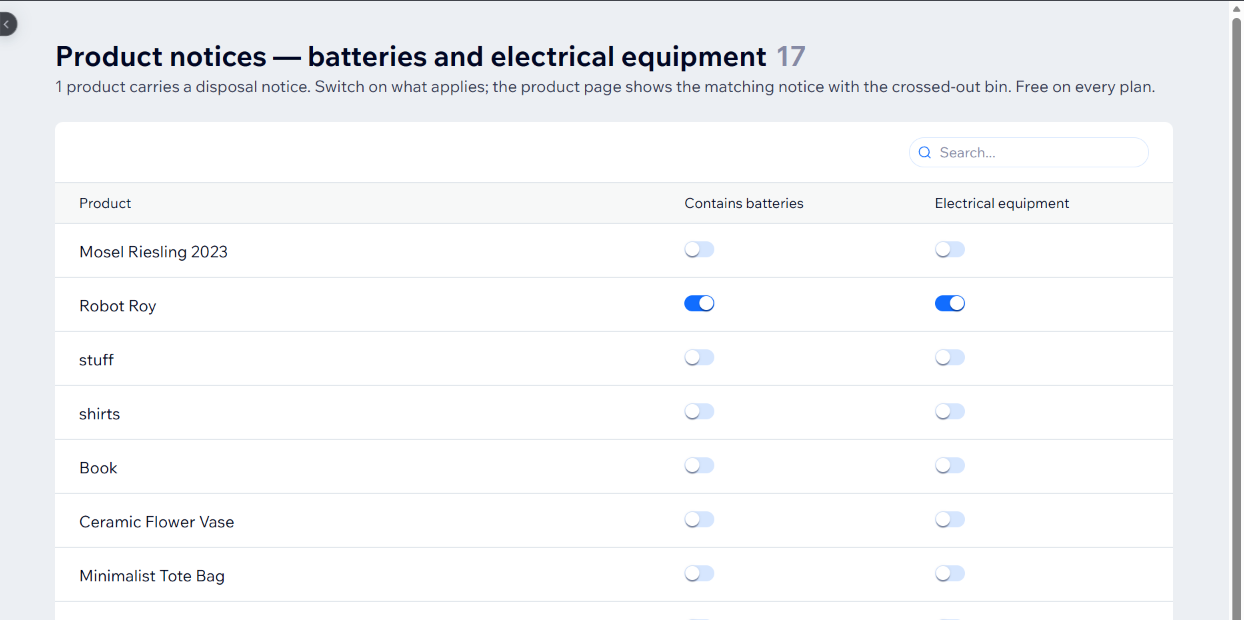
Product notices. One row per product with two switches: Contains batteries and Electrical equipment. Switch on what applies; the notice appears at once.
GPSR (Pro). Create a manufacturer record and, if the manufacturer is outside the EU, an EU Responsible Person record once. Then assign them to products, with the identifier and any warnings. Food and drink are outside the GPSR. Durability guarantees on the same page holds the GARAN label records: only for a free producer guarantee of more than two years on the whole product.
Food information (Food and Drink plan). Open a product and fill in the particulars:
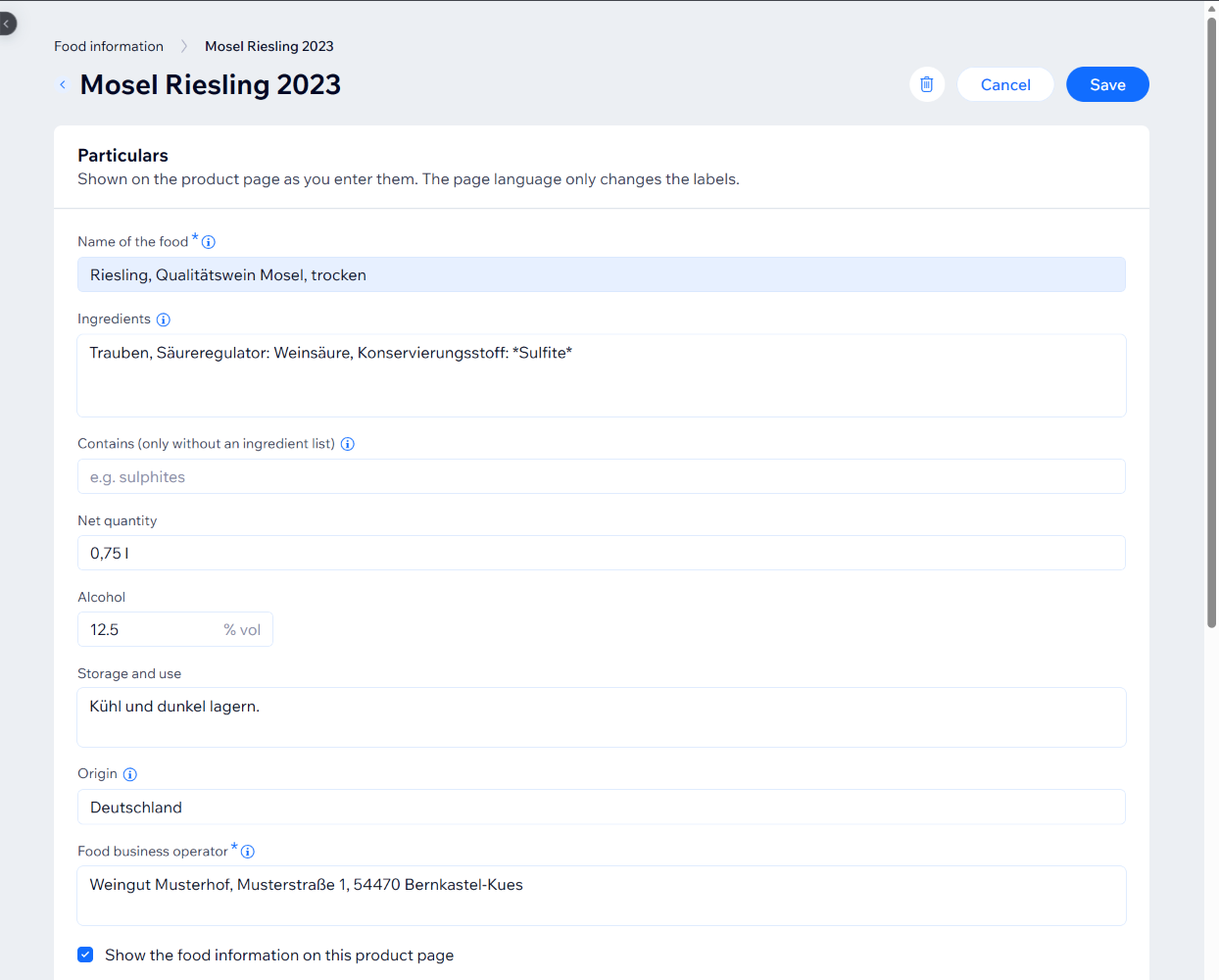
- Name of the food: what it is ("Riesling, Qualitätswein Mosel, trocken"), not the shop title.
- Ingredients: in descending order of weight. Write allergens between asterisks,
*Sulfite*, and they appear in bold. - Net quantity, alcohol (% vol), storage and use, origin where required.
- Food business operator: name and address of the business the food is sold under. A new record starts with the operator you used last.
- Nutrition declaration per 100 g or 100 ml. Leave it empty for foods that are exempt.
The page warns about common gaps (for example a wine without an ingredient list) but only the name and the operator are required, because only you know which exemptions apply to your food.
5. Plans
| Free | Pro | Food and Drink | Pro + Food and Drink | |
|---|---|---|---|---|
| Omnibus prior price, withdrawal button, legal guarantee notice, price line, battery & e-waste notices | ✓ | ✓ | ✓ | ✓ |
| One delivery time for every product | ✓ | ✓ | ✓ | ✓ |
| GPSR, GARAN label, delivery time per product, price history and CSV | ✓ | ✓ | ||
| Food information | ✓ | ✓ | ||
| Price per month (15% less billed yearly) | $0 | $12.99 | $9.99 | $19.99 |
Plans are bought and billed by Wix: Manage Apps → EU Compliance Kit → Upgrade. The App Market shows the price in your currency, including VAT. A shop that sells only food does not need Pro.
6. Something does not show
- Did you publish? Editor changes reach the live site only after Publish.
- Is the plugin on the page? Open the Plugins panel (section 2). A site that had the app before a feature was released has to add that feature's plugin by hand.
- Is there something to show? The prior price only appears on discounted products, GARAN only with a qualifying guarantee, delivery time only with a class chosen, notices only on flagged products, food information only with a name and an operator.
- Does your plan include it? GPSR, GARAN and per-product delivery times need Pro; food information needs a Food and Drink plan. The dashboard page shows an upgrade card if not.
- Wrong language? Blocks follow the page language (German on German pages, English elsewhere). Select the plugin in the Editor → Settings to pin a language.
- Looking at the Editor's preview? Some blocks render inside their box there; check the published site.
Still stuck? Write to support+eucompliance-wix@justarobot.online with your site address and what you expected to see.
Frequently asked questions
Do I have to add anything by hand after installing? On a new installation only the withdrawal button: place it once, usually in the footer. The product page blocks are added for you. Sites that had the app before a feature existed add that feature's plugin from the Editor's Plugins panel.
Why does a block not appear on my live site after I added it? Most often the site was saved but not published. Click Publish in the Editor. If it still does not show, check that there is something for the block to display and that your plan includes it.
Can I remove a block I do not need? Yes. In the Editor, select the product widget, open Plugins and click Remove next to the block, then Publish. Widgets are removed by selecting them and pressing Delete.
Does a food shop need the Pro plan? No. Food and drink are outside the GPSR, so the Food and Drink plan covers food information on its own. Take Pro + Food and Drink if you also sell non-food products that need GPSR details.